.png?width=365&height=73&name=%F0%9F%92%A1EMPLOYEE%20KNOWLEDGE%20BASE%20(2).png)
JUMP TO
New Employee Login
AlphaBEST employees need their own KangarooTime account to access the platform.
Do not share KangarooTime login information between employees.
Once your Area Manager or a member of the SMS team has added you to KangarooTime, you will receive an email invitation.
To set up your account:
- Open the KangarooTime invitation sent to your email.
- Select the link in the email to get started.
- Create your password and PIN.
- Use your email address as your username.
- Complete your employee profile.
- Add an emergency contact.
- Upload a profile picture, if requested.
Accept Your KangarooTime Invitation
The invitation will come from:
The subject line will look similar to:
“Hello, Name! You have been invited to join AlphaBEST Education's KangarooTime system.”
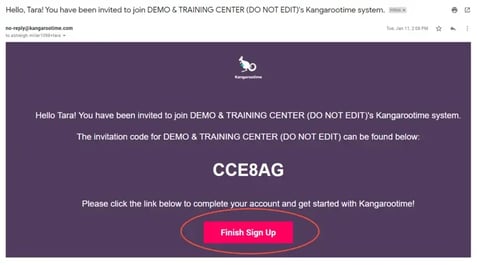
To accept the invitation:
- Open the invitation email.
- Select Finish Sign Up.
- Follow the prompts to create your account.
If you do not see the email, check your spam or junk folder.
Invite a Created Employee
New employees may appear in Created status if their profile has been added to KangarooTime, but an invitation has not yet been sent.
Employees can be invited individually or in a group.
To send an invitation:
- Select Employees.
- Select Profiles.
- Select the Created section.
Invite One Employee
- Select the box next to the employee's name.
- Select the paper airplane icon to send the invitation.
Invite Multiple Employees
- Select the box next to Name to select everyone on the list.
- Select the paper airplane icon to send the invitations.
Update an Employee Email Address
An employee's KangarooTime email address can be changed after their account has been created.
To update an email address:
- Select Employees.
- Select Profiles.
- Select the employee.
- Scroll to the bottom of the employee profile.
- Select Change Email.
- Enter the new email address in the New Email field.
- Select Save Changes.
The email address will not update on the employee profile until the employee verifies the new email address.
Important Reminders
- Each employee should have their own KangarooTime login.
- Do not share employee accounts.
- Check spam or junk folders if a KangarooTime invitation cannot be found.
- Employees who have not yet been invited can be found under Created.
- Employees who have already received an invitation can be found under Invited.
- A Start Date is required when sending an invitation during employee profile creation.
Need Help?
If an employee cannot access KangarooTime or additional assistance is needed, submit an SMS Request Form.